Voiding Credit Card Transactions
Summary
CloudPM supports the ability to void transactions, preventing them from reaching the guest’s statement. However, depending on how accurate you want your hotel’s accounting to be between credit card batches and posted revenue in Chorum, this may not be a suitable alternative as it typically results in an out-of-balance between the two reports.
Partially a result of how the CloudPay system communicates with the MerchantLink servers, the best way to handle these types of corrections is to offset the original transaction. Both methods are detailed below for your own reference.
 Offsetting Transactions
The recommended method of dealing with accidental authorizations is through the offsetting process, which involves accessing whichever menu you posted the original transaction from and posting an opposing transaction using the same method of pay as was used to charge the original transaction. Assuming this is done within the same batch as the original error, both transactions are flagged as offset during settlement and are prevented from reaching the guest’s bank.
To help illustrate this, consider the following scenario:
A guest is arriving with a reservation requiring the full amount of the stay be billed at check in, a total of $136.27. When the guest checks in, they provide their Visa card to pay the balance. The front desk clerk accesses the guest’s folio and posts a new transaction for $136.27 to the Visa account using the guest’s credit card, then checks the guest into Chorum. About an hour later, the guest returns to the front desk stating that a family emergency has occurred, and they will no longer be staying - a decision is made to undo all postings and cancel the reservation as if the guest had not arrived to begin with.
Since the original Visa transaction was already charged, that means a record exists both on the folio and in the CloudPay batch - if we void the batch line, the folio line will still be left behind as an outstanding debit. To accommodate for this, while also preventing the charge from going through to the guest, the clerk posts a new transaction to the folio refunding $136.27 to the guest’s Visa card, also using the Visa account.
When the hotel’s credit card batch is next settled, both the charge and refund posted against the guest’s card will be changed from Authorized to Offset, cancelling both transactions from settling.
Be aware that an offset transaction may still display a pending authorization or hold against the guest's bank account. Typically, this hold is released after five (5) to seven (7) business days but may vary depending on the guest's financial institution.
Voiding TransactionsVoiding a transaction is done from the CloudPay Batch, found in Chorum’s Settlement menus.
Bear in mind that once a transaction has been voided, this cannot be undone; the only means of re-adding the transaction will be to process a new transaction against the guest's card. Furthermore, be aware that you cannot void transactions that have already been settled in a previous batch.
In the event the voided transaction was a debit (charge), the guest may see a pending authorization or hold against their bank account - typically, this is released after five (5) to seven (7) business days but may vary depending on the guest's financial institution.
1. Access the Settlement menu.
2. On the left-hand side, under Find, click Credit Card Batch.
3. Set the Batch Status drop-down to Unsettled.
4. In the top ribbon bar, click Search.
4.1. The current (pending) batch should display. Click on the Batch Number to open the Batch Summary.
5. In the top ribbon bar, click the Batch Detail button in the Show section.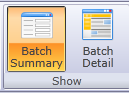
6. In the list of displayed transactions, locate the desired transaction and double-click to open the Transaction Details menu.
7. Review the transaction details. Once you have confirmed that this is the transaction you wish to void, simply click the Void button in the lower left-hand corner of the Transaction Details menu.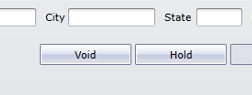
7.1. Upon clicking void, Chorum will prompt you for confirmation. If you are sure you wish to void the transaction, click Ok.
The transaction will now display the status VOID on the Batch Detail menu, and will be archived with your next batch settlement.
